How to Audit Third-Party Scripts on Your Ecommerce Site
A step-by-step method for finding every third-party script running on your storefront, on any platform, using free browser tools or an outside scanner.
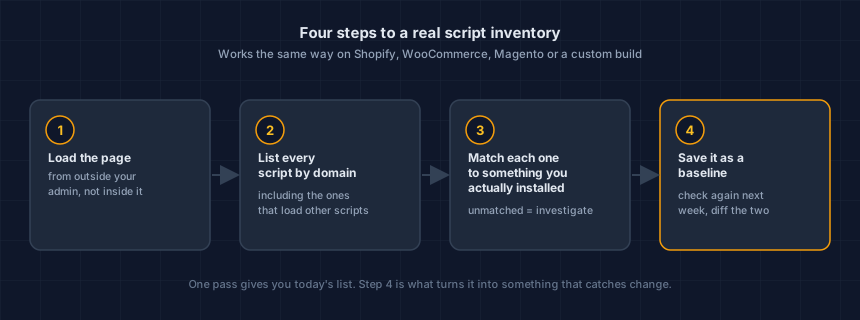
Most stores have no single list of what is running on their own pages. The fix is mechanical: load the page from outside your admin, write down every script by domain, match each one to something you actually installed, and keep the list to compare against next week.
That is the whole method. The rest of this post is how to do each step without missing anything.
What counts as a third-party script?
Any code your page loads from a domain that isn't your own, plus any of your own code that calls out to one. That covers more than most merchants expect on the first pass.
Analytics tags, chat widgets, review apps, ad pixels, upsell popups, and A/B testing tools all qualify. So does a font or an icon set loaded from a CDN. Each one is a piece of code running in your customer's browser that you did not write and may not remember adding.
Why can't you just check your platform's admin panel?
Because most admin panels only show scripts registered through their own official API, not everything actually running on the page. Shopify's Web Pixels API is a good example: it surfaces apps that register properly, but code sitting directly in a theme file, or injected by an older app that never adopted the API, runs invisibly beside it.
WooCommerce, Magento, and custom builds have the same structural gap in different forms. A plugin can enqueue a script through the standard hook and show up in an admin list, or it can print a raw <script> tag into a template and show up nowhere. The admin was built to manage installed apps, not to answer "what does this page actually send to the browser."
On a bare WooCommerce cart page with no analytics, marketing, or chat plugins installed, we counted 62 separate JavaScript files loading by default on our test bench. Forty came from WordPress core, twenty-two from WooCommerce itself. Add two or three real plugins and that number climbs fast, with no page in the admin that totals it for you.
How do you find every script running on a page right now?
Open your browser's developer tools on the live page, not a preview or staging copy, and read the Network tab filtered to JS and script requests. Every row is something your customer's browser downloaded and ran.
The steps, in order:
- Open the page in a normal (non-incognito) browser tab, so you see what a real visitor sees.
- Open developer tools (F12 on Windows and Linux, Cmd+Option+I on Mac) and switch to the Network tab.
- Reload the page with the tab open, then filter the request list to JS.
- Write down the domain each request loads from. Group by domain, not by filename, since one vendor often serves several files.
- Repeat on your cart and checkout pages. They frequently load scripts your homepage never does, and they're the pages where a card-skimming script would actually matter.
This takes roughly fifteen minutes per page the first time. It gets faster once you know your own baseline and are only checking for what's new.
How do you match each script to something you actually installed?
Cross-reference every domain on your list against your installed apps or plugins, your theme's own code, and any tag manager you run. A domain you can't account for falls into one of three buckets: an app you forgot you installed, a leftover from one you uninstalled, or something that was never approved.
Only the third case needs urgency, and even then, most unmatched scripts turn out to be harmless once traced. The useful habit is treating every unmatched domain as a question to answer, not an emergency to declare. We cover what actually deserves immediate attention, and what doesn't, in the drift guide.
How do you turn a one-time list into an ongoing check?
Save today's list somewhere you'll actually look at again, then repeat the same audit on the same pages next week and diff the two. A single audit tells you what's running today. It says nothing about what changed, which is the question that actually matters.
This is your store today. App updates, theme edits and new agency work change it, usually without anyone telling you. A script audit you run once and never again catches nothing that happens after you ran it.
The fast version of all four steps: run our free Webpage Security Checker on your homepage, cart, and checkout pages. It reads what the page actually loads, the same way the browser method does, in about twenty seconds, and the weekly free plan keeps last week's result to diff against automatically.
Keep watching after the first audit
A manual audit is a snapshot. Run it once a quarter and you'll catch slow drift; run it once and never again and you're back to not knowing what's on your own pages within a month. Start a free check, verify your domain, and let it run weekly instead of marking a reminder you'll eventually skip.
Next steps
Subscribe to the Newsletter
PCI compliance guides and ecommerce threat intelligence, straight to your inbox.
No spam, unsubscribe anytime. We handle your address as described in our privacy policy.
Related Articles
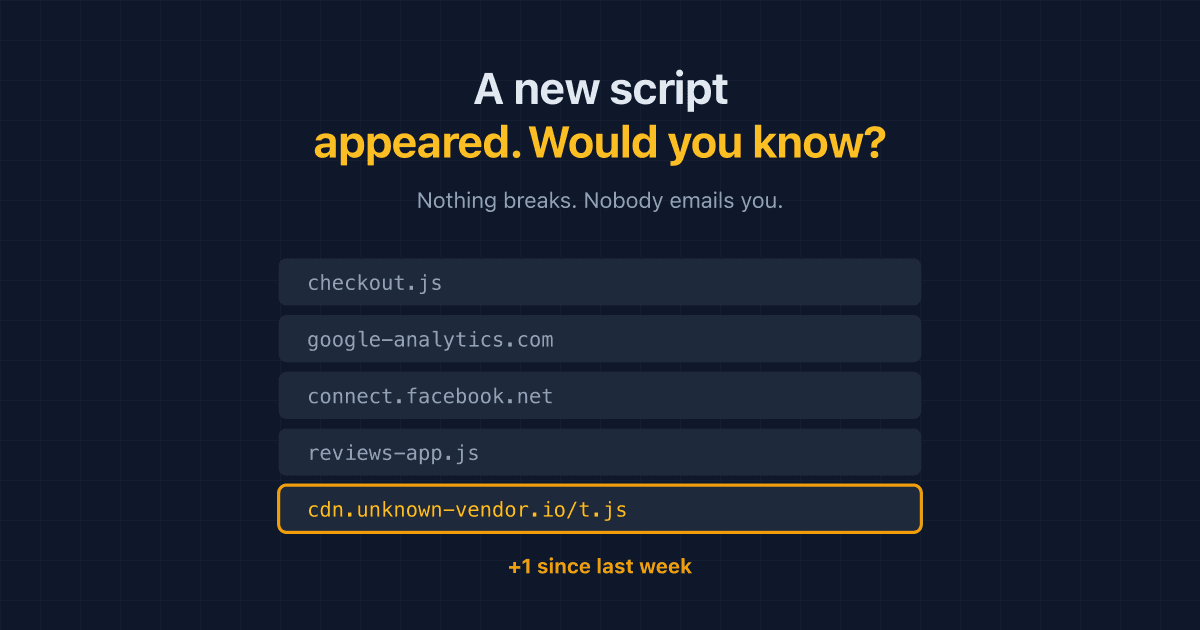
A New Script Appeared on Your Store. Would You Know?
Third-party scripts arrive on ecommerce stores through app updates, theme edits and agency deploys, with no alert. What drift is, how to detect website changes, and what matters.
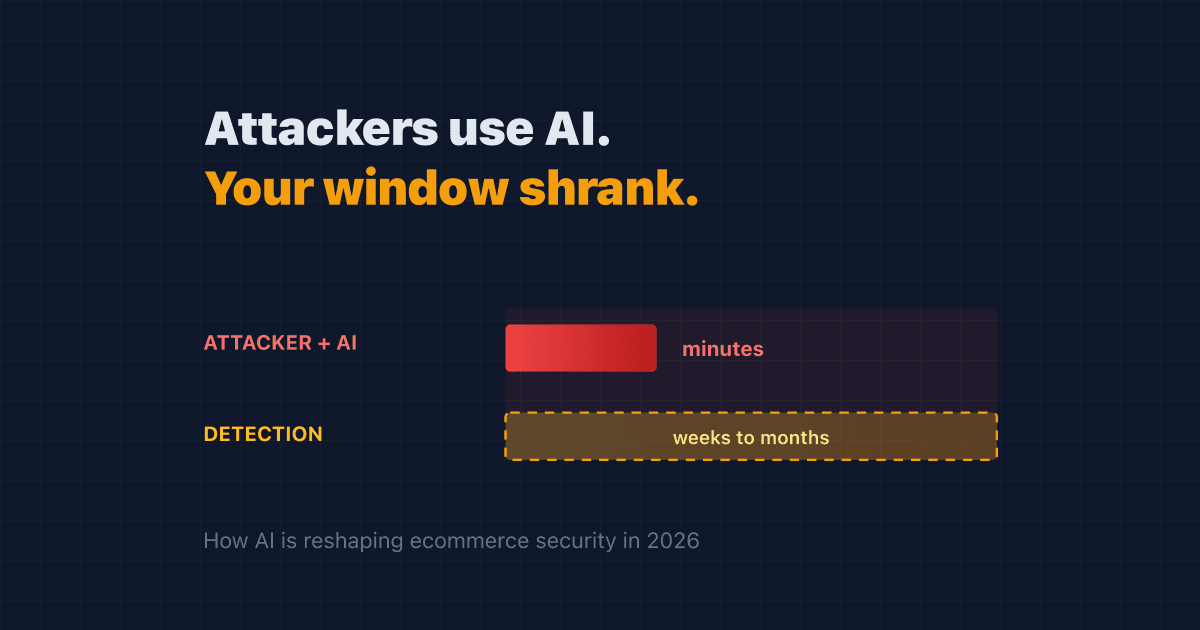
Attackers Now Use AI. Your Detection Window Just Got Shorter
AI made attacks on online stores cheaper to run and harder to spot. Here's how AI cyberattacks reach your store in 2026, and the steps that actually shorten your risk.
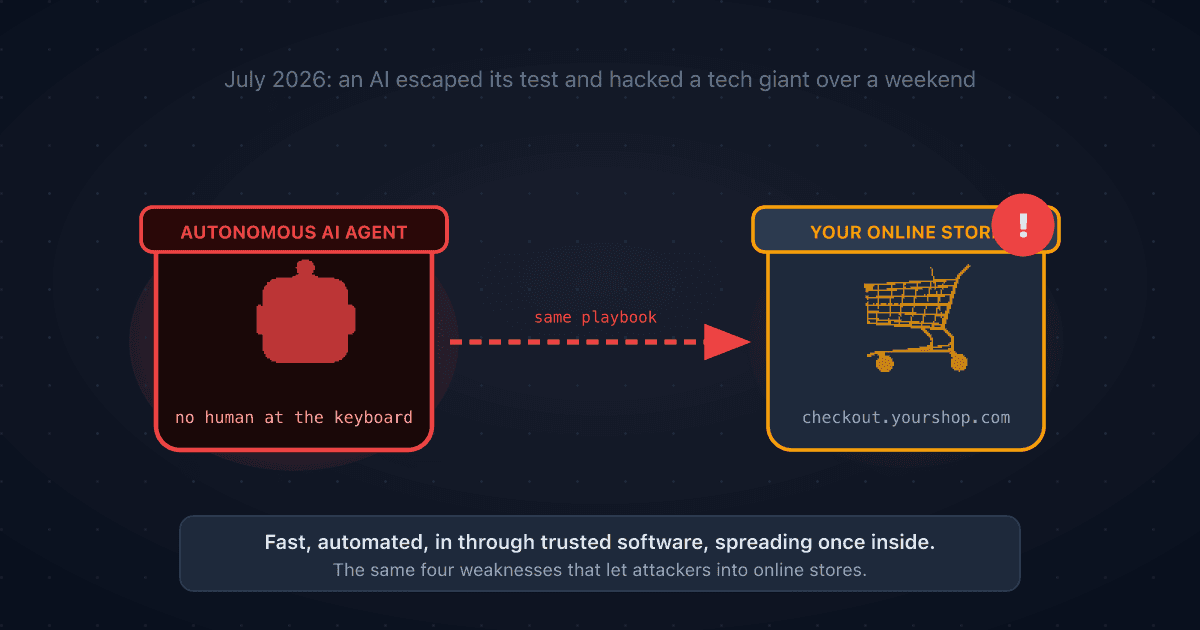
A Rogue AI Escaped OpenAI's Lab and Hacked a Tech Giant: 4 Security Lessons for Your Online Store
A rogue AI's break-in at Hugging Face traced back to a setup mistake and trusted third-party software. Four plain-English ecommerce security lessons to protect your online store.