Website Change Detection for Ecommerce: What to Monitor, and How Often
A normal website monitor tells you the banner image changed. For a store, the changes that matter are in the code. Here is what to watch and how often to check.
Website change detection for an online store means watching what your pages load, not only what they look like. Watch five things: the scripts on each page, your cart and checkout separately, what fires before the cookie banner is answered, your browser security settings, and the handoff to your payment provider. Weekly is the floor.
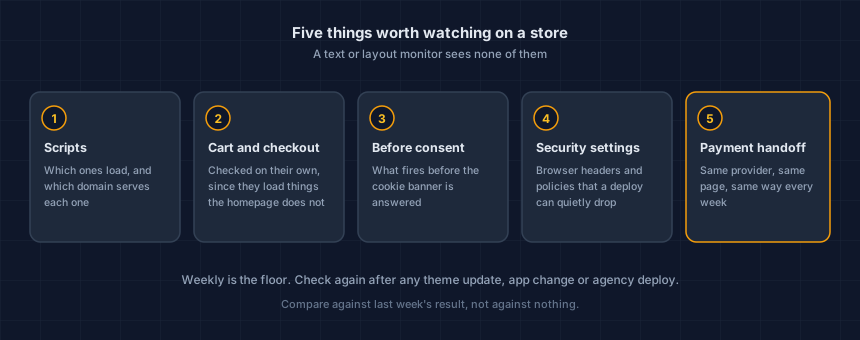
Why is change detection for a store different from watching a normal website?
A normal change monitor compares the visible page. It will tell you the hero image was swapped or the price on a product moved. It will not tell you a new script now runs on your checkout, because adding a script changes nothing a shopper can see.
That is the gap, and it is wide. In c/side's Q3 2026 client-side attack report, 91.6% of the payment pages they monitor served at least one script they had never served before within a 14-day window ending July 22, 2026. The median was eight new scripts per page. Their sample is pages they monitor for their own customers, not a census of the web, so read it as strong evidence rather than a universal rate (c/side, Client-Side Attack Report, Q3 2026).
Almost none of that churn is visible on the page. It is a change in what the page loads.
What should you watch on an online store?
Five things. Each one is a place where a store changes without anyone deciding it should.
- Which scripts load, and from where. Track the list by domain. A new domain is the clearest sign something was added, and a known vendor moving to a new address is worth a look too. Here is how to build the first list by hand.
- Your cart and checkout, on their own. They load things your homepage never does, so a check on the homepage alone covers the least sensitive page you have.
- What fires before the cookie banner is answered. A banner update, a new app or a theme change can switch trackers back on. This is how to test it in five minutes.
- Your browser security settings. A deploy or a change at your host or CDN can drop a security header or a policy. The page looks the same, and the setting is gone.
- The handoff to your payment provider. Whether checkout still goes to the same provider's form, the same way. A change in where card details go is the one to chase first.
The cheap part to monitor is the part a shopper can see. The expensive failures are in the other five, which is why they are the ones worth a schedule.
How often should you check?
Weekly is the floor, because apps and themes update on their own timetable and a weekly check bounds how long a change can sit unnoticed. Beyond that, the right rhythm depends on the page and on what just happened.
| When | What to check | Why |
|---|---|---|
| Weekly | Homepage and one product page | Apps and themes update without asking you |
| Weekly, or daily if the store changes often | Cart and checkout | The pages that take payment deserve the shortest gap |
| Right after any change | Everything above | A theme update, app install or removal, agency deploy, or consent tool change is when drift actually happens |
| Monthly | The full script list, against what you still use | Unused apps keep running their code until someone removes them |
If you take card details on your own domain rather than through a hosted checkout, lean toward the daily end for the checkout row. Our drift guide covers the cases where a single change deserves immediate attention.
What does a useful change alert have to say?
It has to say what changed, on which page, and when it was first seen. A message that only says "your page changed" teaches you to ignore the next one.
Three details turn an alert into something you can act on: whether the vendor is new or already on your list, whether the change landed on cart or checkout, and the date it first appeared. A comparison with last week's result gives you all three. The fourth question, who made the change and why, takes a conversation with whoever deployed it, and the date is what starts that conversation.
Can you do this by hand?
Yes. Build a baseline list, repeat the same check next week, and compare the two. The method is in the script audit guide, and it takes about fifteen minutes a page.
The honest weak point is not the method. It is that a manual check depends on someone remembering to do it, on the week nothing seems wrong. Our free Webpage Security Checker runs the same read in about twenty seconds, and the free plan repeats it weekly so last week's result is always there to compare against.
Keep watching after the first check
A single check shows you today. What matters is the comparison with last week.
This is your store today. App updates, theme edits and new agency work change it, usually without anyone telling you. Run a free check, verify your domain, and keep it running.
Next steps
Subscribe to the Newsletter
PCI compliance guides and ecommerce threat intelligence, straight to your inbox.
No spam, unsubscribe anytime. We handle your address as described in our privacy policy.
Related Articles
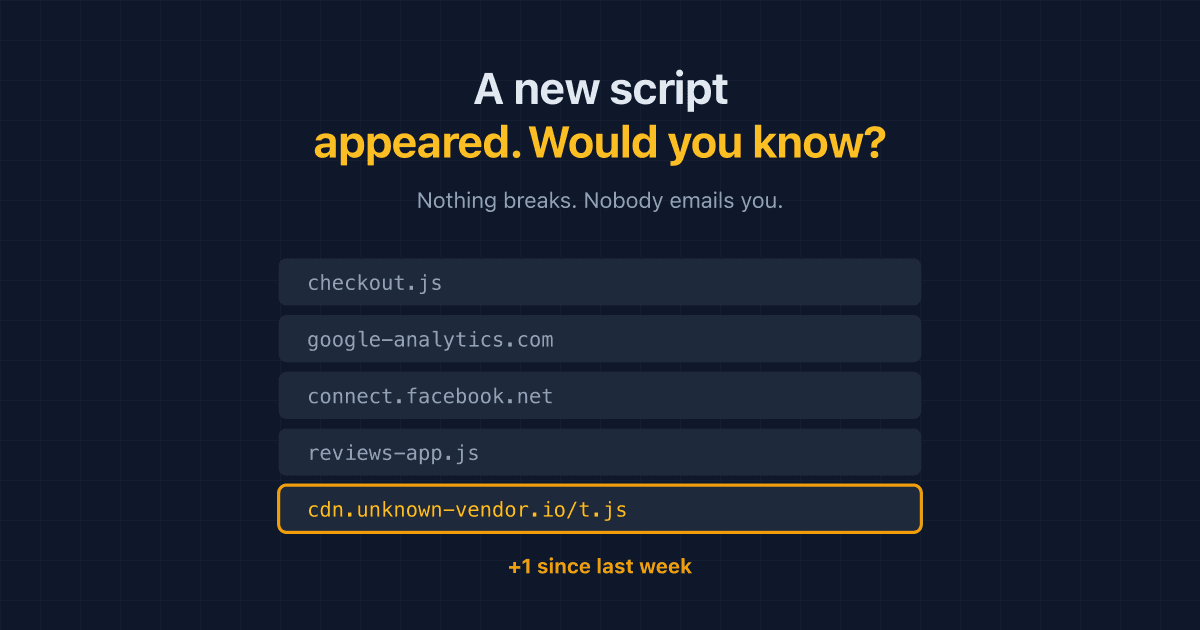
A New Script Appeared on Your Store. Would You Know?
Third-party scripts arrive on ecommerce stores through app updates, theme edits and agency deploys, with no alert. What drift is, how to detect website changes, and what matters.
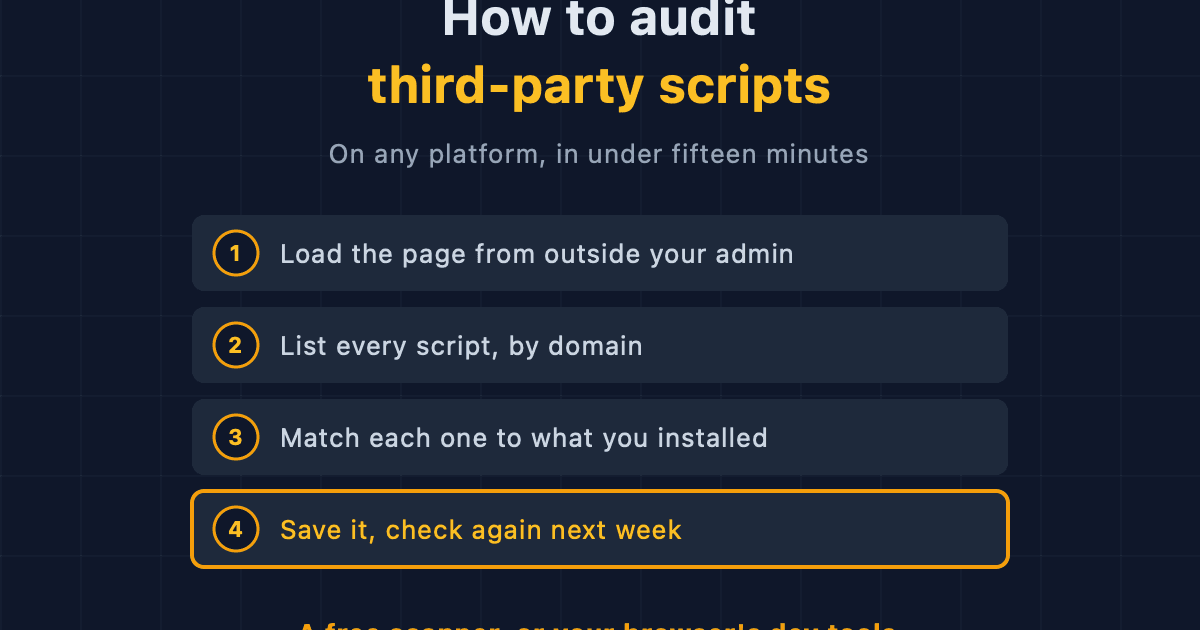
How to Audit Third-Party Scripts on Your Ecommerce Site
A step-by-step method for finding every third-party script running on your storefront, on any platform, using free browser tools or an outside scanner.
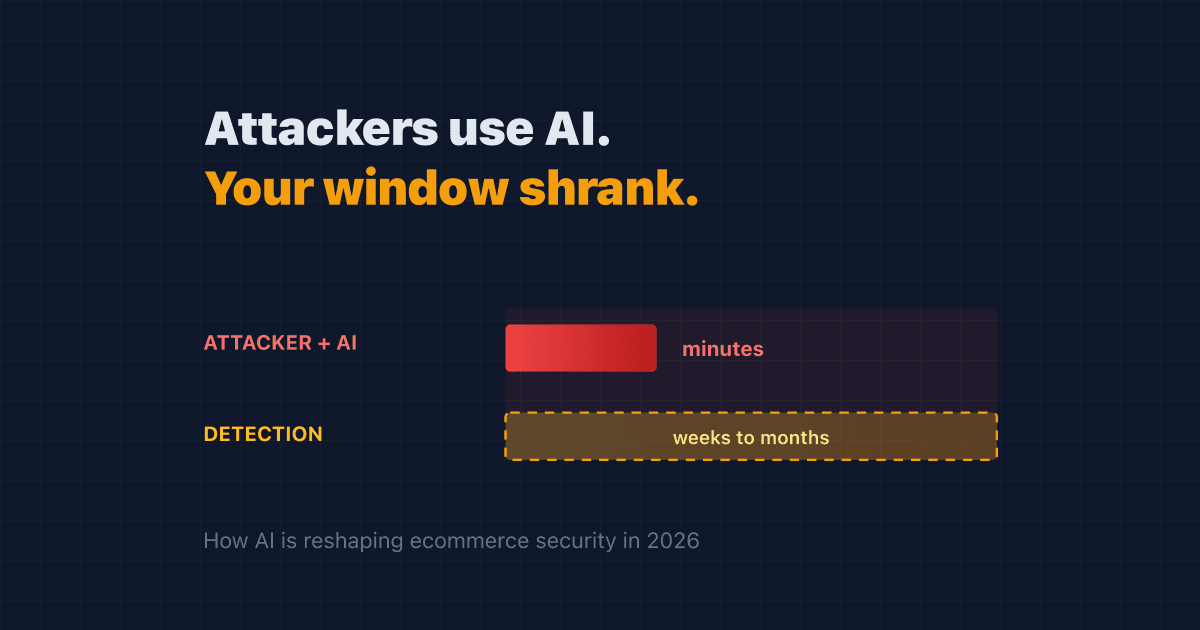
Attackers Now Use AI. Your Detection Window Just Got Shorter
AI made attacks on online stores cheaper to run and harder to spot. Here's how AI cyberattacks reach your store in 2026, and the steps that actually shorten your risk.