How to See Every Script Running on Your WooCommerce Checkout
WordPress has no screen listing the scripts on your checkout. Here's how to get a script inventory, what PCI 6.4.3 asks for, and a free plugin that does it.
Your WooCommerce checkout loads more JavaScript than you think, and WordPress gives you no screen that lists it. To see it you need a script inventory: every file the page loads, and whether that list changed since you last looked. A free plugin now does this from inside wp-admin.
I want to be precise about why this matters, because the usual pitch ("stop Magecart!") is both overheated and unhelpful. A card skimmer is not exotic. It is one more script on a page that already runs dozens, and it looks like all the others.
Why can't you see the scripts on your own checkout?
Because nothing in WordPress shows you. The Plugins screen lists plugins, not the individual JavaScript files those plugins load on a given page. A script added by a compromised plugin, an injected file, or a tag manager rule does not appear in any admin screen you already visit.
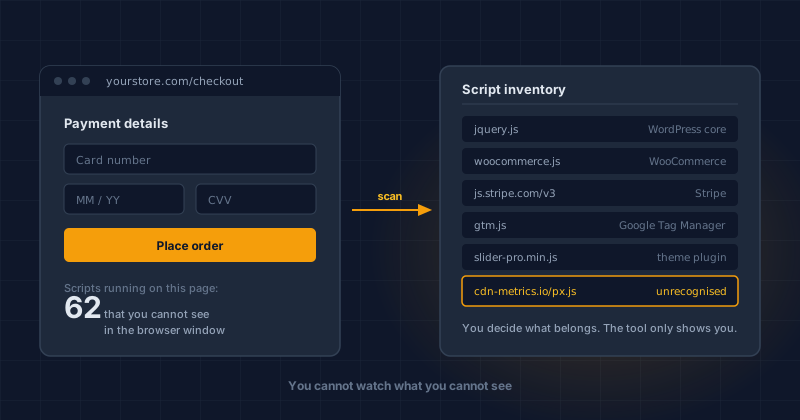
Here is the part that surprises people. On our test bench, a bare WordPress 7.0.2 install running WooCommerce 11 with the default theme and no analytics, marketing, review, or chat plugins loads 62 separate JavaScript files on its cart page. Forty come from WordPress core, twenty-two from WooCommerce. If your store still runs the older shortcode cart instead of the Cart block, the same install loads 14.
Sixty-two, before you have added a single thing. Every tag manager, reviews widget, or chat bubble you have added since sits on top of that number.
Now the harder problem: those scripts change without telling you. On 12 June 2026, attackers reached the content delivery network account behind the OptinMonster, TrustPulse and PushEngage WordPress plugins and added malicious code to the legitimate JavaScript files those plugins serve. Sansec, an ecommerce malware research firm, put the exposure at over 1.2 million sites (source: Sansec, 13 June 2026).
Nobody installed anything. No plugin update was applied. The file name on every one of those sites stayed the same. The contents changed at the vendor's end.
That payload went after logged-in administrators rather than card fields, so it was not a skimmer. The delivery route is the point.
A script you already trusted can start doing something new, and the only local signal is that the page is no longer what it was. If you never wrote down what it was, there is nothing to compare against.
This is the plain version of a rule you will meet in PCI DSS v4.0.1: keep a list of your payment-page scripts, and notice when the list changes. The requirement exists because the attack above is common, not theoretical.
What does PCI Requirement 6.4.3 actually ask for?
Two things. Requirement 6.4.3 asks you to keep a written inventory of every script on your payment page, confirm each one is authorised, and assure its integrity. Requirement 11.6.1 asks you to detect unauthorised changes to that page. Together they mean: know what runs there, and be told when it changes.
Who they bind depends on your SAQ type, and the answer changed recently.
SAQ A-EP and SAQ D merchants: 6.4.3 and 11.6.1 are mandatory. No nuance.
SAQ A merchants: both requirements were removed in the January 2025 SAQ A revision (v4.0.1 r1, effective 31 March 2025). They were replaced by an eligibility criterion: you self-attest that your site is not susceptible to script attacks (PCI SSC, SAQ A updates; the SAQ A v4.0.1 r1 document itself is in the PCI SSC document library).
Read that second one again, because the headlines got it wrong. The requirement went away. The question did not. You still sign a form saying your page is not susceptible to script attacks. A list of what is on the page is how you answer that from evidence instead of hope.
Which SAQ are you? For WooCommerce, the answer usually falls out of where the card fields live:
- Stripe Elements, Stripe Checkout, or PayPal buttons, where card fields sit in the payment provider's own iframe or on their site: usually SAQ A.
- Card fields in your own page HTML, including older gateway integrations: SAQ A-EP.
- Card data touching your servers or your database: SAQ D.
That covers most stores. It stops being reliable the moment your gateway is old, your integration is custom, or a plugin touches the card fields, and those are exactly the ones that get misfiled. Your acquirer confirms it, not this post.
Our longer explainer on what 6.4.3 and 11.6.1 ask for goes through both requirements line by line.
How do you get a script inventory in five minutes?
Install a plugin that reads your own pages and writes the list for you. We built one and released it free: CyberShield Checkout Script Monitor for WooCommerce, now on the WordPress.org plugin directory. It is open source under GPLv2, so you can read every line before you trust it.
- Install it from Plugins → Add New in wp-admin and search for "CyberShield Checkout Script Monitor".
- Activate it. A new menu appears in your sidebar.
- Open Checkout Scripts and press Scan my checkout. It reads your home, shop, cart and checkout pages.
- Read the list.
Each row tells you three things: the script's source domain, who loaded it (WordPress core, a named plugin or theme, or an outside vendor), and whether it carries an integrity check. Above the list sits a count of the scripts on your checkout and how many have no integrity check, with a plain-English explanation of what Requirement 6.4.3 asks and why the count matters.
The scan is the cheap part and the useful part. I have not yet reviewed a checkout where the owner could name everything on it. The first read is usually where the real conversation starts.
If you want the same view from outside your site, with no install, the free Webpage Security Checker scans a URL and reports on scripts and security headers.
Run the scan before you change anything. The first inventory is the most informative one you will ever take, because it shows you the store as it actually is rather than as you remember configuring it.
How does drift monitoring catch a script that changes later?
By recording what is on your page today and asking visitors' browsers to report anything different tomorrow. You set a baseline from the scripts currently on your cart and checkout. The plugin then sends a Content-Security-Policy-Report-Only header on those two pages, and the browser does the watching for you.
When a script appears that is not in the baseline, the browser reports it back to your own site and the change lands under Alerts.
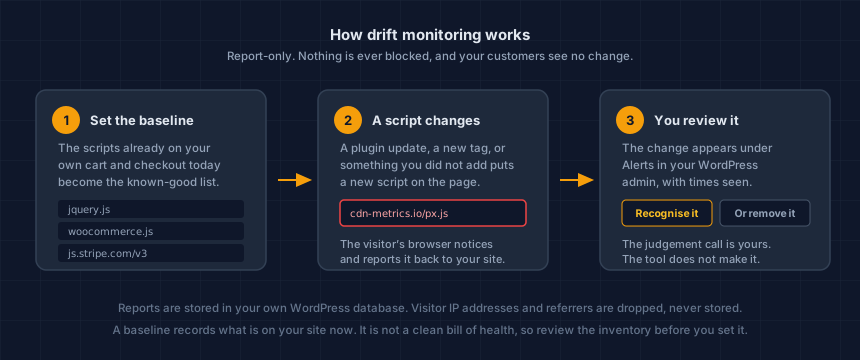
Report-Only means exactly what it says. The browser reports and never blocks. Turning monitoring on withholds nothing from your customers and changes nothing about how your checkout behaves.
Two design decisions are worth knowing, because they are why I would run this on my own store.
The plugin ships no list of "trusted" vendors. Deciding on your behalf that Google or a payment provider is safe would recreate the exact failure above, where a trusted vendor's own files turned hostile. Your baseline is your scripts, not our opinion of anyone's.
Nothing leaves your site. Reports are posted to an endpoint on your own WordPress install and stored in your own database. The visitor IP address and referrer are dropped and never stored.
A baseline records what is on your site now. It is not a clean bill of health. If something unwanted is already on your checkout, setting the baseline makes it the new normal and you will never be told about it. Review the inventory first, remove what does not belong, then set the baseline.
What does the plugin not do?
It does not block anything, and it does not make you PCI compliant. It shows you what runs on your payment page and tells you when that changes. Every judgement after that is yours. Being direct about the limits is more useful than a longer feature list:
- It does not stop a skimmer. It is Report-Only by design. Be sceptical of any WordPress plugin that claims to block card skimming.
- It does not catch every script. The scan reads scripts written into the page HTML. A script injected later by another script, which is how a tag manager works, may not appear. An external scan can catch some of those.
- It does not judge what is safe. There is no shipped allowlist, and that is deliberate. A vendor list would just move the trust problem to us.
- It is not a malware scanner or a firewall. Keep Wordfence, or whatever you already run. This sits alongside it.
- It does not complete your SAQ. It gives you evidence for one part of it.
If your checkout is currently loading a skimmer, this plugin will help you see the script. Removing it is the easy half. Working out how it got there, and what you owe your acquirer, usually needs a person.
What should you do with the list?
Work through it once, properly, then keep it current. The value is not in owning an inventory. It is in the two or three scripts you find that nobody in your business can account for, and in the decision you make about each one.
- Name every script. Go row by row. If you cannot say what a script is for and who added it, write it down as unexplained.
- Remove what nobody can justify. Old marketing pixels, an abandoned A/B test, a plugin nobody uses. Each one is a live entry point on your payment page.
- Cut the count on cart and checkout. Marketing scripts rarely need to run there. Ask your developer to load them on product pages and not on the payment path.
- Set the baseline once the list is clean, and turn monitoring on.
- Keep the record. A dated inventory with an owner named against each script is the evidence your SAQ question is asking for, whichever SAQ you file.
Step 3 is the one merchants skip and the one that helps most. Fewer scripts on the payment path means fewer places a skimmer can hide. The shorter review list is a bonus.
The related read, if you want to see what you are defending against: how an AI-powered card skimmer hides on a WooCommerce checkout.
Where to start
If the list comes back longer than you expected, or you are not sure which SAQ your integration puts you in, our founder-led checkout review is a one-time engagement that reviews your payment page, classifies your SAQ scope, and gives you a prioritised list of what to fix. You keep the findings whether or not you work with us afterwards.
You do not need any of that to start. Install the free plugin and run one scan. Five minutes, and you will know something about your own checkout that you cannot know today.
Written by Dennis Wu, CISSP, PCIP, founder of CyberShield Studio, with 30+ years in security and hands-on responsibility for PCI Level 1 compliance at scale. CyberShield Studio helps ecommerce merchants get ready for PCI review. We do not make anyone compliant and we never claim to. The decision is always yours, and our job is making sure you are not making it blind.
Next steps
Subscribe to the Newsletter
PCI compliance guides and ecommerce threat intelligence, straight to your inbox.
No spam, unsubscribe anytime. We handle your address as described in our privacy policy.
Related Articles
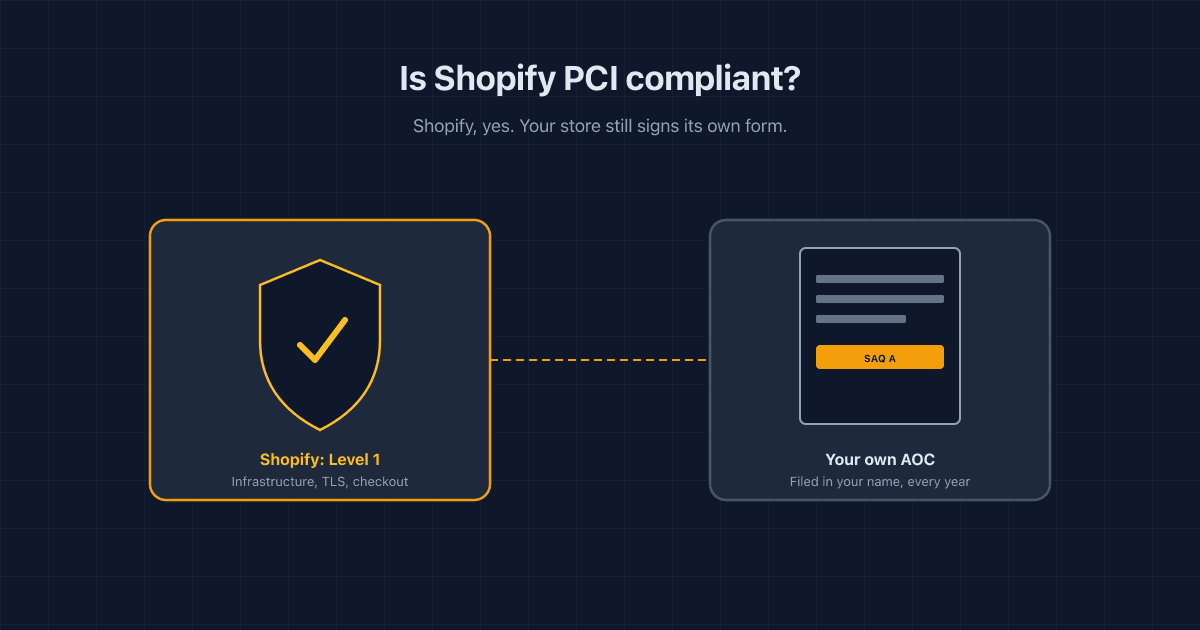
Is Shopify PCI Compliant? What Shopify Covers, and What's Still On You
Shopify holds its own PCI Level 1 status, but that doesn't cover your store. Here's what Shopify handles, which SAQ you need, and what's still on you.
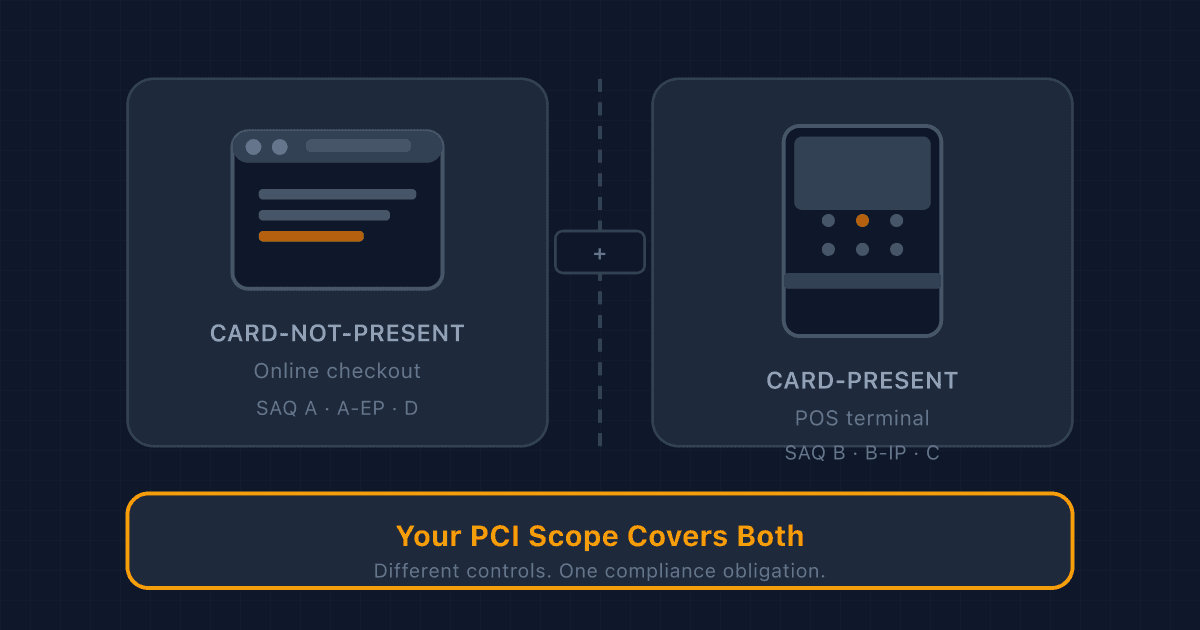
Adding a POS Terminal to Your Online Store? Here's What Changes for PCI Compliance
Card-present and card-not-present transactions fall under different PCI rules. If you sell both online and in person, here's what changes: SAQ type, network segmentation, physical device inspection, and who handles what.
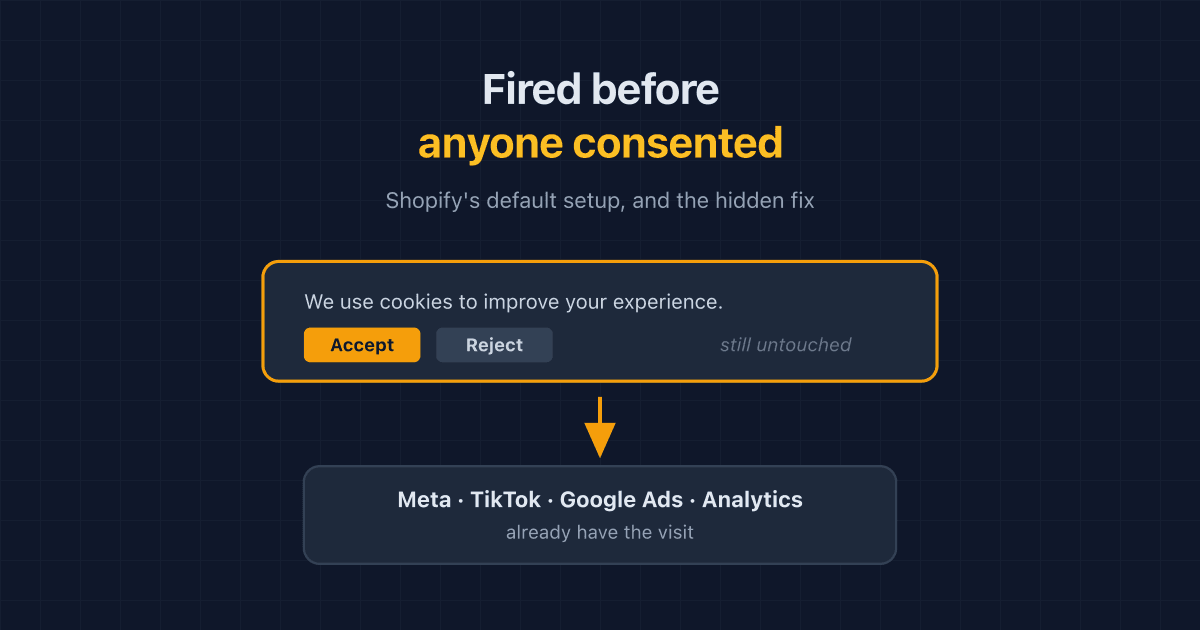
Shopify Fires Your Pixels Before Consent by Default. The Fix Is Hidden.
Shopify app pixels and custom pixels send data before a shopper answers your cookie banner, even when permissions look required. How to check, and the hidden fix.